Animated Email Signature: How to Add a GIF That Plays in Outlook and Gmail
An animated email signature is an animated GIF placed in your signature block like any other image, and it plays in Gmail, Apple Mail, Outlook on the web and Outlook for Microsoft 365. The exception that trips people up is desktop Outlook for Windows 2007–2019, which shows only the first frame of the GIF. So the rule that matters most is simple: make frame one your complete logo. This guide covers how to add the GIF in Outlook, Gmail and Apple Mail, how big it should be, and what to check when it refuses to move.
Can you put an animated GIF in your email signature?
Yes. Signature editors accept images, and a GIF is an image whose frames play in sequence, so any editor that takes a static logo takes an animated one. Nothing needs installing on the recipient's side: the animation either plays in their email app or it doesn't, and most apps play it.
| Email app | What your animated GIF does |
|---|---|
| Outlook 2007–2019 for Windows (perpetual license) | Displays only the first frame |
| Outlook for Microsoft 365 or Office 2021 (Windows) | Plays, but pauses a looping GIF after three plays |
| New Outlook for Windows | Not documented by Microsoft; some users report signature GIFs arriving as a still picture |
| Outlook on the web, Outlook for Mac, iPhone and Android | Plays |
| Gmail on the web, Android and iPhone | Plays |
| Apple Mail on Mac and iPhone | Plays |
| Yahoo Mail | Plays |
Microsoft's own support article says Outlook plays animated graphics by default, and Litmus reported Microsoft's note that looping GIFs play three times, then pause. The rest of the table comes from client testing collected by Can I email.
Should you use an animated email signature?
One small logo animation reads as polish. A signature that keeps flashing beside every sentence you write reads as noise, which is why everything below pushes toward a short GIF that plays once. A static logo is the better choice when:
- Many of your recipients use Outlook 2007–2019 for Windows, where the animation never plays.
- Most of what you send is replies in long threads. Gmail and Outlook both let you set a different default signature for replies and forwards, so the animated one can stay on new messages.
- Your clients expect a conservative look, as in legal or financial work.
Which Outlook versions show only the first frame?
Desktop Outlook for Windows from 2007 through 2019, the versions sold as a one-time purchase, does not animate GIFs. Recipients on those versions see frame one of your GIF as a still image and nothing more. Outlook for Microsoft 365 plays the animation and only falls back to the first frame when animation effects are switched off in Windows.
That makes the first frame your entire signature for part of your audience, and it matters more than it sounds. Most logo animations are built as reveals: the logo assembles out of particles, draws itself stroke by stroke, or glitches into view. Frame one of a reveal is, by design, not your logo yet.
We checked this on our own renders. Using our AI logo animation engine, we exported five logo animations as email-sized GIFs and pulled frame zero of each:
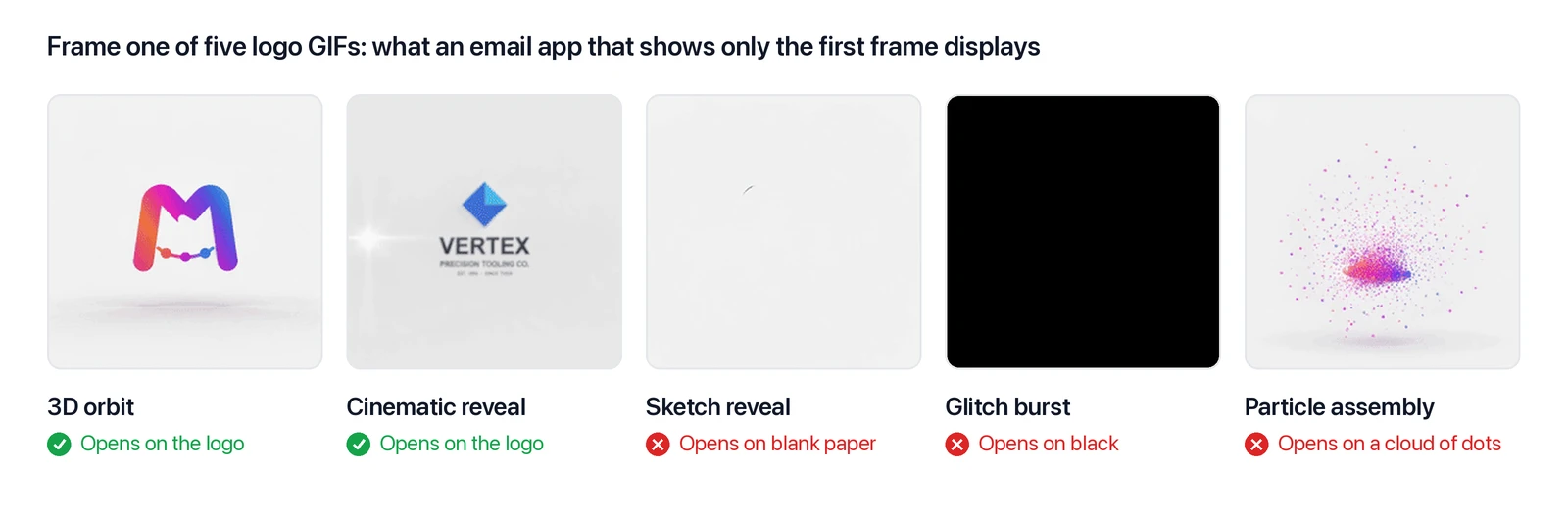
Two of the five open on the finished logo. The other three open on blank paper, a black screen and a scatter of dots, which is a striking start for a video intro and an empty box in Outlook 2016. Before your team starts sending it, step through the opening frames and confirm the logo is fully there at zero seconds.
What does an animated email signature look like?
An animated email signature can move in three places: the logo, a promo banner under your contact details, or a handwritten sign-off.
| Type | What moves | What Outlook 2007–2019 shows |
|---|---|---|
| Animated logo | The logo turns, catches a light sweep or settles into place | Your logo, if the animation starts from the finished logo |
| Promo banner | An offer or event date slides in under your details | The opening slide, so the offer has to read on its own |
| Handwritten sign-off | Your name writes itself stroke by stroke | An empty space or a first stroke, because the name is only complete at the end |
A handwritten sign-off is made the same way as any other signature GIF: the strokes are animated in a design or animation tool and exported as a GIF.
Both examples below are animated logos, rendered from a single logo file and placed in a sample signature. Each opens on the complete logo:
They loop here so you can watch them; the email signature export plays once and rests on its last frame.
How to add an animated GIF to your email signature
In every app, the GIF goes in the same way a static logo does; only the editor's location and a trap or two change.
In new Outlook and Outlook on the web
- Select Settings, then Accounts > Signatures.
- Select Add signature and give it a name.
- In the editing box, place your cursor where the logo belongs and use the Insert pictures inline button in the editor toolbar to add the GIF.
- Choose whether the signature goes on new messages and on replies and forwards, then select Save.
Signatures don't carry over between every Outlook app, and Microsoft's signature guide notes that you may need to create yours in each one. In Outlook for Mac, signatures live under Outlook > Settings > Signatures, where the editor's See more items menu adds a picture.
In classic Outlook for Windows
- Open a new message, then select Signature > Signatures.
- Choose the signature to edit, or select New and name it.
- Select the Image button, pick your GIF, and select Insert.
- Select OK to save.
Two traps. First, leave the picture as it is once inserted: users have reported that adding an effect such as a shadow makes classic Outlook send the GIF as a still JPG. Second, Outlook 2010–2019 won't animate the GIF inside your own compose window, so a frozen draft doesn't mean recipients will see it frozen.
In Gmail
- Open Gmail and select Settings > See all settings.
- On the General tab, scroll to Signature and create or select a signature.
- Select the Insert image button in the signature editor and add the GIF through My Drive, Upload or Web Address (URL).
- Scroll to the bottom and select Save Changes.
A GIF picked from My Drive must be shared publicly, and some work or school accounts only offer the URL option. Gmail also counts the image toward the signature's 10,000-character limit and suggests resizing the image if you hit an error (Gmail Help). The Gmail apps for Android and iPhone only take a text mobile signature; if you don't set one, messages sent from the app use your web signature.
In Apple Mail
- In Mail on your Mac, choose Mail > Settings, then click Signatures.
- Select the email account in the left column.
- Click the Add (+) button below the middle column and name the signature.
- Drag the GIF into the preview area on the right.
Mail on iPhone is text-only: Apple's guide says you can only use text in Mail signatures there.
What size should an animated email signature be?
Two separate numbers matter: how many pixels tall the logo displays, and how many kilobytes the file weighs.
How many pixels
Gmail publishes the clearest numbers. It recommends signature images 70–100 pixels high by 300–400 pixels wide, and caps them at 100 pixels high by 1,000 pixels wide (Gmail Help). For a square or stacked logo, that means a display height of 70 to 100 pixels beside your name.
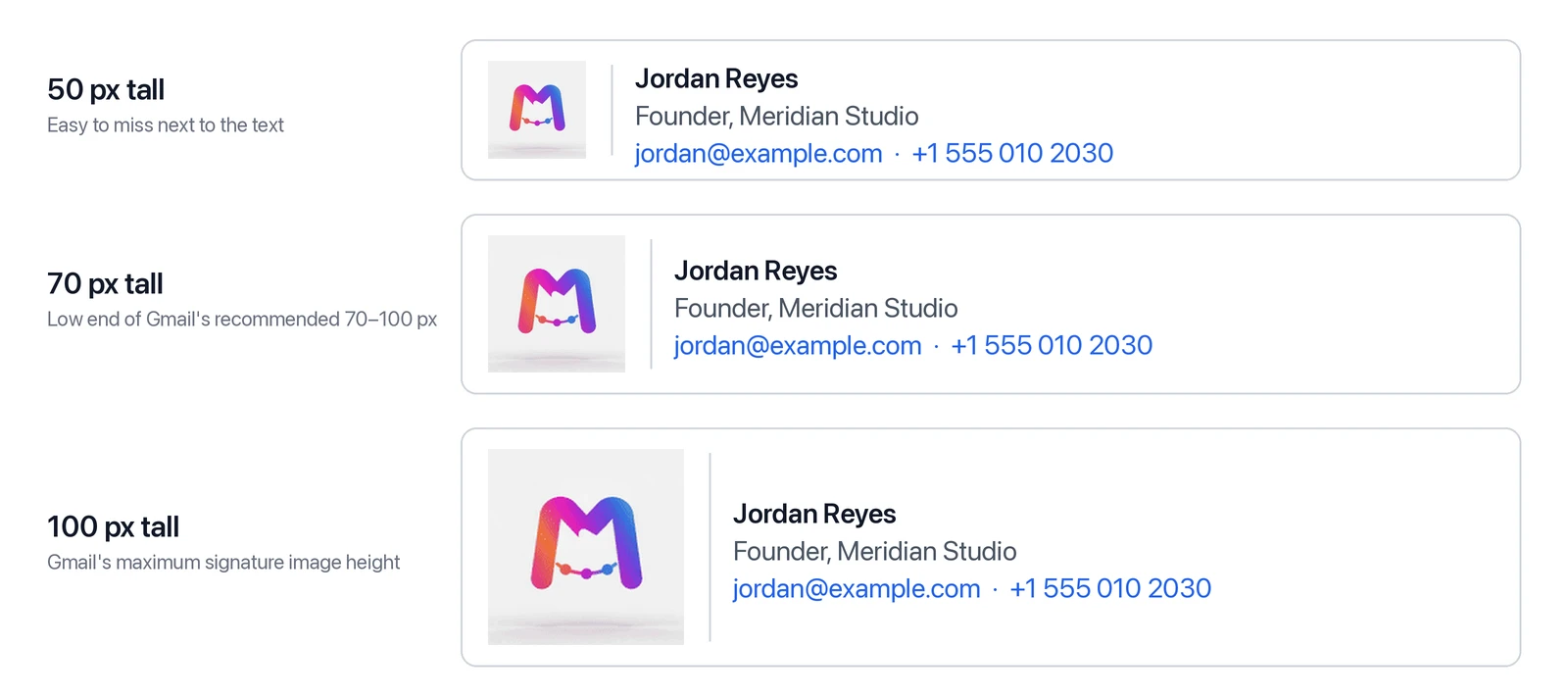
At 50 pixels the logo loses out to three lines of text; at 100 it holds its own. The faint box around it is the render's off-white backdrop, a problem covered in the rules below.
Email is measured in pixels, so centimeter and inch sizes from print design don't carry over. Sharpness does. High-density screens on phones and many laptops use two or more physical pixels for every displayed pixel, so a logo shown 100 pixels tall looks crisp when the file has around 200 to give. If your GIF is bigger than its display size, select it in the signature editor and pick a size option (Gmail offers Small, Medium, Large and Original size), then send yourself a test to confirm it still moves.
How many kilobytes
No major email app publishes a maximum GIF file size. What exists is advice: Litmus recommends 1 MB at the largest for email GIFs, and email signature vendors commonly suggest 500 KB or less.
GIFs come out heavier than people expect, because the format reuses a pixel only when it is identical in the next frame, and a rendered clip changes nearly all of them. We converted 21 four-second logo animations: at 480 pixels and 15 frames per second, every GIF weighed 2.5–6.4 MB, more than the MP4 it was made from. Cutting to 240 pixels, 10 frames per second and 64 colors brought the same clips to 340–860 KB, and the 3D orbit and cinematic light-sweep renders, where the logo stays whole, landed at 380–400 KB. Pixels and frames moved the number; switching dithering methods saved less than a tenth. Full-frame motion like particles produced the heaviest files, one more reason to keep it out of a signature. For the same clips as MP4, WebM and animated WebP, see our guide to animated logo file formats.
How to make an animated email signature GIF from your logo
There are three realistic routes to an email signature animation, and the right one depends on whether you start from a template or from the logo you already have.
- Animate a design in Canva. Canva can animate a design and download it as a GIF; its help center says free accounts can export GIFs up to one minute long at up to 1280 × 720 pixels. You pick from Canva's animation effects and apply them to the elements of your design.
- Hire a motion designer. They build the animation in a tool such as After Effects and convert the render to a GIF. You get full control, at freelance prices and turnaround.
- Generate the motion from your logo file. An AI tool takes the logo you already use and generates the animation around it, no timeline involved.
Get an email signature GIF whose first frame is your logo. Every style on our GIF page starts from the logo you upload, so frame one shows it even in Outlook 2016, and the email signature export is 240 pixels on its longest side, 10 frames per second, and plays once before resting on its last frame. Open the GIF logo maker →
Free to try on a new account's starting credits; downloading the GIFs needs a paid plan or credit pack.
Four rules for a GIF that survives Outlook
- Frame one is the whole logo. Whatever sits at zero seconds is what Outlook 2007–2019 users see, permanently.
- Play once, in five seconds or less. A GIF without a loop setting plays a single time. W3C's accessibility guidelines ask for a way to pause moving content that starts on its own, lasts more than five seconds and sits alongside other content (WCAG 2.2, Success Criterion 2.2.2). An email has no pause button, so a single play of five seconds or less stays clear of the problem.
- No flashing. Keep flashes to three or fewer in any one second, the threshold in Success Criterion 2.3.1. Glitch and strobe effects are the usual offenders.
- Match the backdrop to the email. Each GIF pixel is either fully transparent or fully solid, so a logo's soft edges pick up a pale halo on dark backgrounds or turn jagged. A solid backdrop is safer, but check its exact color: in our tests a logo uploaded on pure white came back on #F9F9FC rather than pure white, which shows as a faint box in a white email.
Why isn't my email signature GIF animating?
If the GIF in your animated email signature arrives as a still image, check these causes:
- The recipient uses Outlook 2007–2019 for Windows. There is nothing to fix on your side except the first frame.
- Animations are off in Windows. Outlook for Microsoft 365 follows the Windows setting (on Windows 11, Accessibility > Visual effects > Animation effects) and shows only the first frame when it is off.
- The GIF already played three times. Outlook for Microsoft 365 pauses looping GIFs after three plays and shows a play button. That is the app, not your file.
- A picture effect turned it into a JPG. In classic Outlook, delete the signature image and insert it again without a shadow or any other picture effect.
- New Outlook shows a still placeholder. Microsoft hasn't documented this. In one Microsoft Q&A thread, the GIF started working in new Outlook once its width was reduced.
- The image is blocked, not frozen. If the GIF loads from a web address instead of being embedded in the message, classic Outlook blocks automatic picture downloads by default, and Gmail users can choose to be asked before external images appear. The recipient sees an empty box until they allow it.
- You're looking at your own draft. Send a test to both a Gmail and an Outlook address, and judge the version that arrives.
Animated email signature FAQ
Can I create an animated email signature for free?
Partly. Gmail, Outlook and Apple Mail all let you set up a GIF email signature at no cost, and Canva's free plan can export an animated design as a GIF. On MorphLogo, generating and previewing an animation from your own logo is free on a new account's starting credits, while the GIF exports are part of a paid plan or credit pack.
Can I use a ready-made signature GIF from GIPHY?
You can insert any GIF you have the right to use, and GIPHY and LottieFiles host plenty of signature-style animations. They are generic, though: a waving hand says nothing about your business and is someone else's artwork, so check the license and run the same first-frame and size checks.
Can an email signature be interactive?
Only through links. Email apps don't run scripts, so the interactive parts of a signature are its links: your website, a booking page, your social profiles. A GIF adds motion, not interaction. The whole image can link to one address, and in practice that is as far as it goes.
Table of Contents
Author

Categories
Tags
More Posts
6 Best Higgsfield Alternatives in 2026, Tested for Logo Fidelity
Higgsfield is a multi-model gateway built for cinematic shots, which is why logos come back altered. Six alternatives compared, with measured first-to-final frame drift for six style presets.
Every Way to Animate a Logo: A Tool-by-Tool Comparison
Eleven realistic ways to animate a logo, each answering the same four questions — learning curve, ceiling, export formats, and when not to open it — plus a table that routes you from the file you already have to the right tool.
Animated Logo File Formats: MP4, GIF, WebM or Lottie?
Which animated logo file format to use where: MP4 for video, GIF for email, WebM or WebP for lighter web files, Lottie or SVG for vector UI, with sizes measured on 21 logo renders and a straight answer on transparent backgrounds.